How to export request logs
Export your organization’s request logs from the dashboard as a ZIP containing a CSV file. Open the CSV in a spreadsheet or process it with your own scripts to investigate requests and build reports.
When to use an export
Section titled “When to use an export”- Investigate failures: filter failed requests, group them by error code or target host, and keep request IDs for follow-up with support.
- Analyze performance: compare rendering times and output sizes across websites, request options, or time periods.
- Build reports: summarize request activity or join the exported request IDs with records from your application.
Download your logs
Section titled “Download your logs”- Open Request Logs in the dashboard.
- Choose a date range, status, or request-options filter, then click Filter. Without a selected date range, the export uses the last seven days.
- Click Export CSV. The export includes all matching results across every page. The rows-per-page setting does not limit it.
- Wait for the ZIP in your browser’s downloads, unzip it, and import the CSV into your spreadsheet or analysis tool. Import the
idcolumn as text to preserve long request IDs.
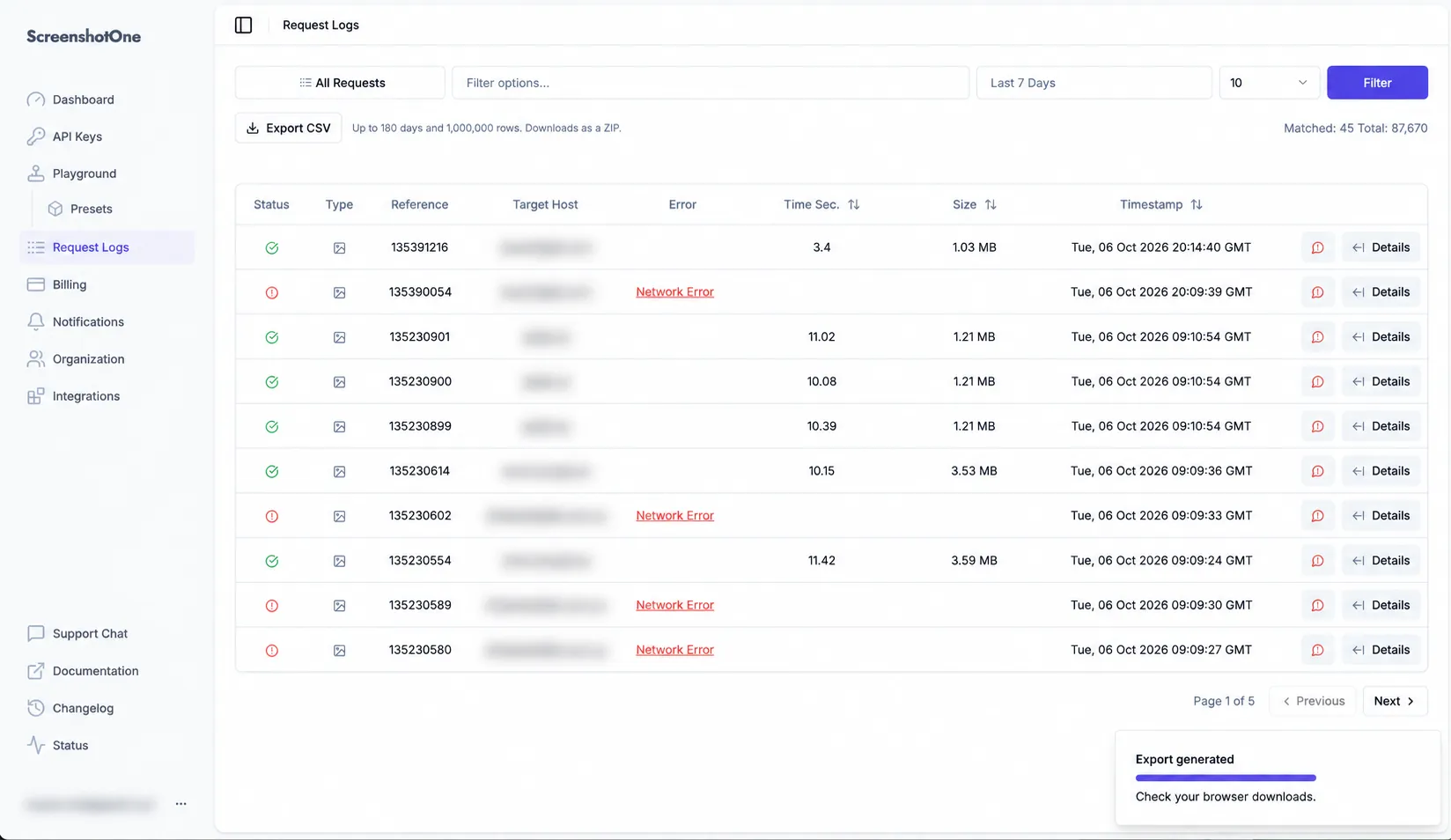
The export uses the current date, status, request-options, and error-code filters. The date range follows the log’s last updated time, and rows are exported with the most recently updated requests first, regardless of table sorting.
When available, a toast shows progress. Closing the toast only hides progress; it does not cancel the download. Progress may be unavailable even while the download continues. Check your browser’s downloads to confirm that the ZIP finished downloading.
What the CSV contains
Section titled “What the CSV contains”Each row describes one request. Timestamps use UTC, missing values are empty, and the file uses UTF-8 encoding.
| Column | Contents |
|---|---|
id | The request reference shown in the dashboard. |
created_at, completed_at | When the request was created and completed. |
status | succeeded, failed, or pending. |
http_status_code, error_code | The recorded HTTP status and ScreenshotOne error code. |
run_time_seconds, size_bytes | Rendering time in seconds and output size in bytes. |
method, path | The API request method and path. |
target_type, target_host | The target type and hostname, when available. |
ip_country_code | The requested IP country option, when set. |
requested_url | The original url option, when present. |
options | The API request URL with its recorded options. |
Screenshot files, HTML and Markdown request bodies, error messages, and error stacks are not included. Access keys and signatures are removed from the exported options URL. Target URLs and other recorded options remain in the file.
Limits
Section titled “Limits”| Limit | Maximum |
|---|---|
| Date range per export | 180 days |
| Matching requests | 1,000,000 |
| CSV size and ZIP size | 2 GiB each |
| Export duration | 15 minutes |
| Active exports | One per organization |
| Export attempts | 10 per hour per organization |
The 180-day limit applies to the selected range; it does not guarantee that logs exist for every day in that range. Exports include the logs currently available to your organization. Owners, admins, and developers can export them.
If the result exceeds a row, size, or time limit, narrow the dates or filters and export smaller batches. Exports that exceed a limit fail rather than silently returning a shortened file. Requests rejected because export capacity is busy or the row count is outside the allowed range still count toward the hourly attempt limit.
Export capacity is shared. If it is busy, wait a minute before trying again. If another export is running for your organization, wait for it to finish. Interrupted downloads must be started again.
Requests still in progress can change while the export runs, so progress counts are approximate. Use a completed time period when comparing reports.