How to bypass CAPTCHAs
Since the launch of ScreenshotOne API, it was designed to perform ethical screenshotting, hence the ScreenshotOne API doesn’t solve CAPTCHAs by default.
Only use CAPTCHA-solving or proxy-unlocking services for websites you own, websites you operate for your customers, or websites where you have permission and automated access is allowed. Do not use them to access content you are not allowed to access, bypass paywalls, evade account restrictions, or ignore the target website’s terms.
If you need to use a third-party service and you know that your use case is allowed, you can use it as a proxy with ScreenshotOne API.
For example, Web Unlocker by Bright Data is a service that can be used as a proxy for CAPTCHA-protected pages in allowed cases.
Before retrying every request with such a proxy, read when to retry with a proxy. Retrying only selected errors is usually cheaper and more reliable.
Web Unlocker by Bright Data
Section titled “Web Unlocker by Bright Data”The Web Unlocker by Bright Data can help with CAPTCHA-protected pages in allowed cases. However, be aware that the API response time might be slower than the normal one, and sometimes the requests even might fail. It relates to how proxies operate and depends on the stability of the proxy provider.
Bright Data Web Unlocker solution has pay-as-you-go pricing model, and it can help with CAPTCHA-protected pages in allowed cases.
However, be aware that the API response time might be slower than the normal one, and sometimes the requests even might fail. It relates to how proxies operate and depends on the stability of the proxy provider.
1. Create the Web Unlocker proxy
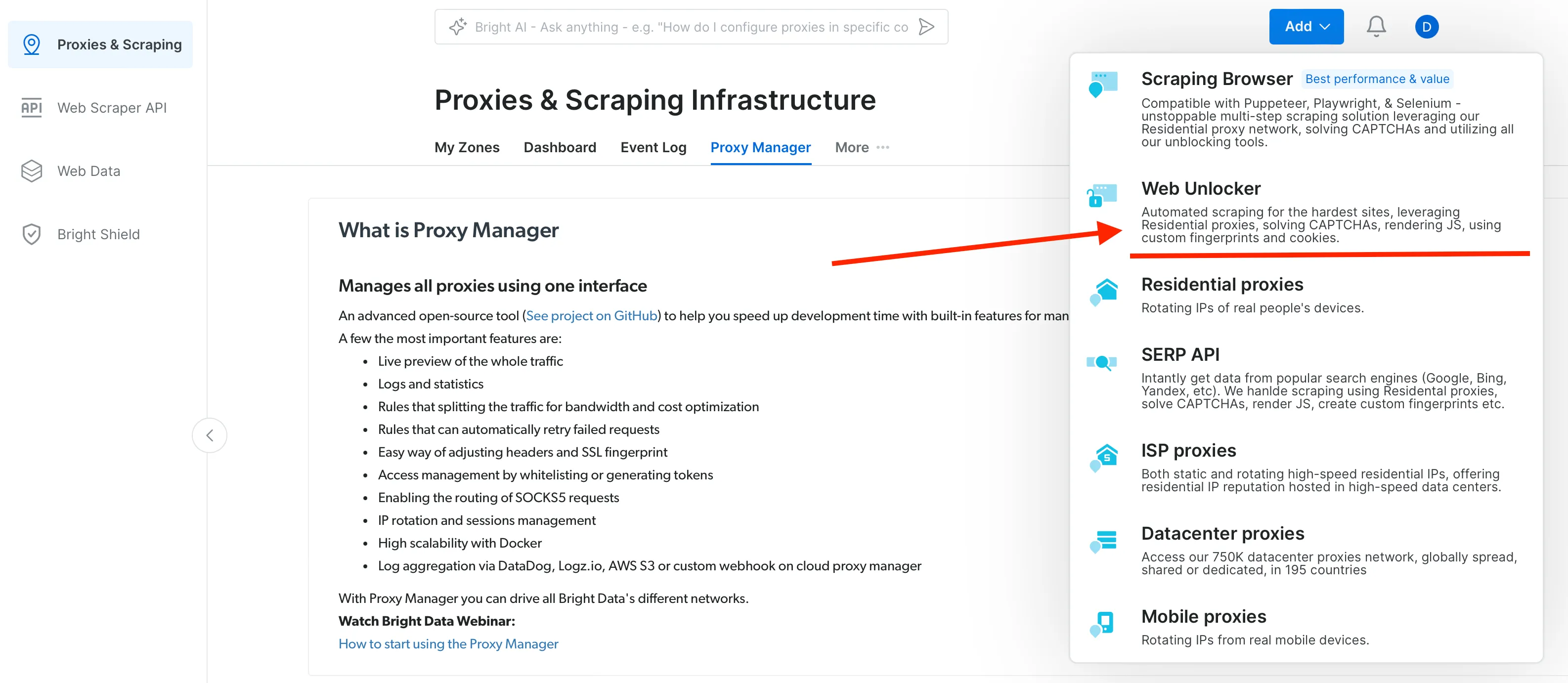
Section titled “1. Create the Web Unlocker proxy”To create the Web Unlocker proxy, sign up to Bright Data, and once you log in, choose Web Unlocker from the “Add” menu:
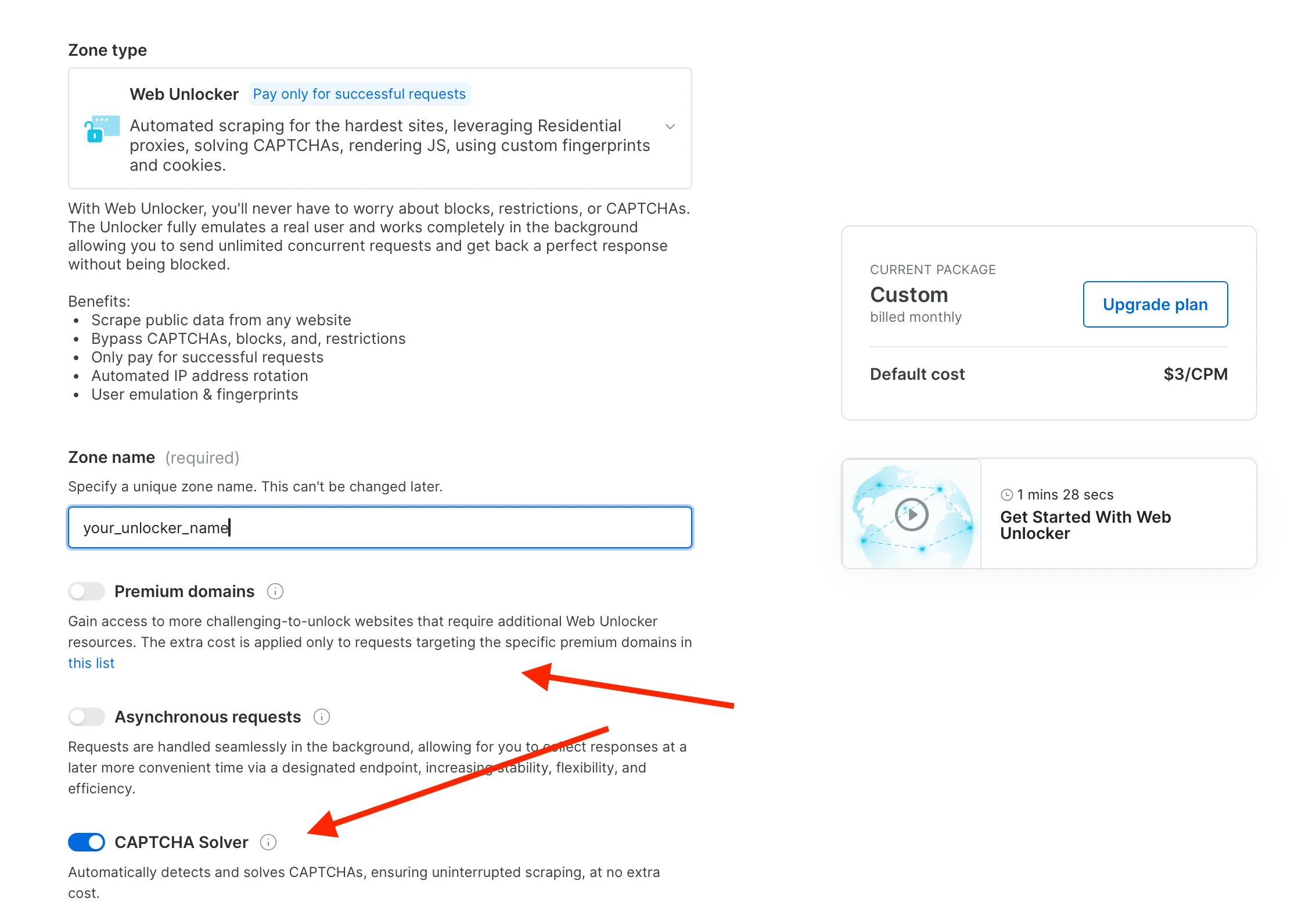
Make sure to enable the CAPTCHA solver and premium domains if needed:
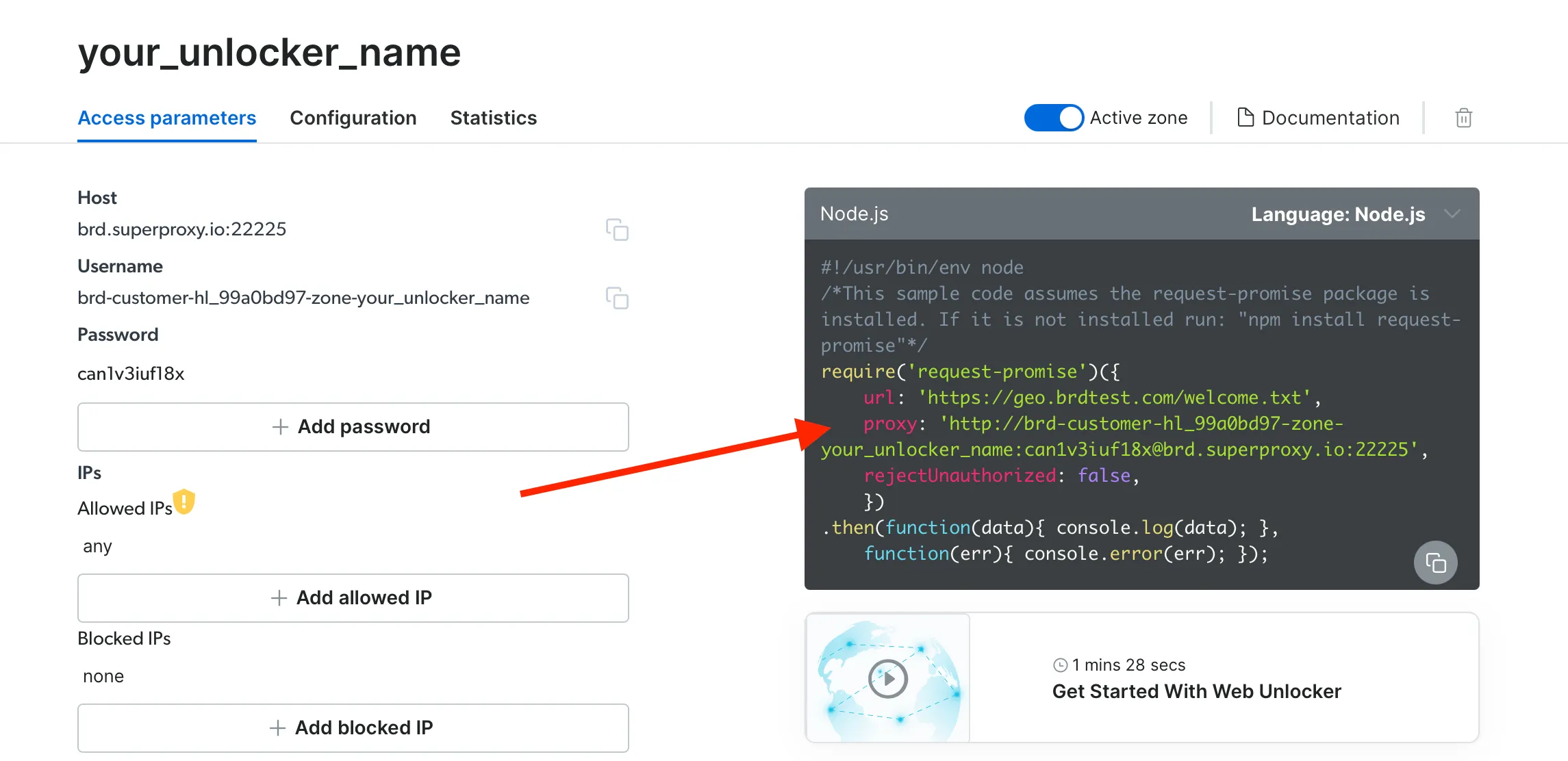
Once created, you can choose the Node.js code example and copy the proxy URL:
2. Use the Web Unlocker proxy with the ScreenshotOne API
Section titled “2. Use the Web Unlocker proxy with the ScreenshotOne API”In this example, the proxy URL is:
http://brd-customer-hl_99a0bd97-zone-your_unlocker_name:can1v3iuf18x@brd.superproxy.io:22225Now, you can use this proxy URL in the ScreenshotOne API request:
https://api.screenshotone.com/take?key=<YOUR API KEY>&url=https://example.com&proxy=http://brd-customer-hl_99a0bd97-zone-your_unlocker_name:can1v3iuf18x@brd.superproxy.io:22225Residential proxies
Section titled “Residential proxies”It is worth to mention, that using residential proxies might also prevent CAPTCHAs from even showing up. Check out our guide on how to use proxies to learn more.
It happens because with the residential IP addresses, usually there is no need to even show CAPTCHAs, since it looks like that the requests are coming from real users, not bots.
Cost optimizations
Section titled “Cost optimizations”To save money on proxies, you can try to use the option fail_if_content_contains to fail the request if the content contains a certain string that might hint you that there is a CAPTCHA on the page.
The option returns a specific error code like:
{ "is_successful": false, "error_code": "content_contains_specified_string", "error_message": "The page content contains the specified string by the `fail_if_content_contains` option. If it seems to be a mistake or not what you expected, please, reach out to `support@screenshotone.com` as quickly as possible, and we will assist and try to resolve your problem.", "documentation_url": "https://screenshotone.com/docs/errors/content-contains-specified-string/"}Since you don’t pay for the failed requests, you can then retry the request with the same parameters and your proxy, but only when this is allowed for the target website. For a full error-by-error retry matrix and a code example, see when to retry with a proxy.
Any questions?
Section titled “Any questions?”Read more about how to use proxies in the ScreenshotOne API and if you have any questions, feel free to reach out to us at support@screenshotone.com.