Muse is Meta’s personal AI agent. It can browse the web, work with connected apps, and continue a task after you close the app. Meta says Muse can also build custom tools for services it needs to use.
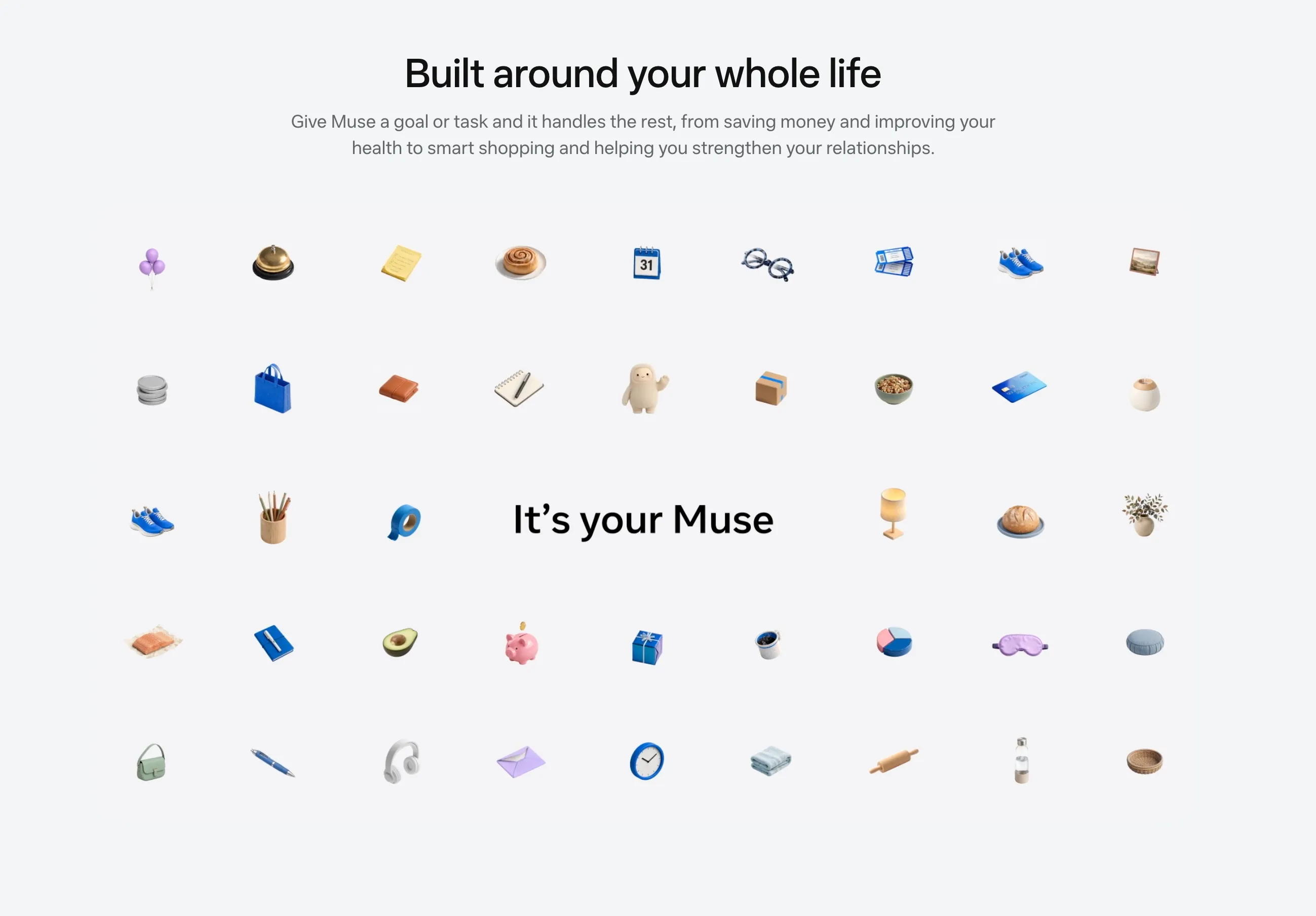
What can Muse do?
Muse can help with everyday tasks such as:
- researching and comparing options across websites;
- coordinating plans, reminders, and connected apps;
- following up on a goal or a task over time.
For work involving websites, a screenshot gives Muse a visual record of what a page looked like, beyond the text it could extract from that page.
When to use Playwright or ScreenshotOne in Muse
Use browser automation such as Playwright when Muse needs to interact with a page: sign in, click through a workflow, fill a form, reach a specific state, or test how a UI behaves. Playwright can take screenshots during that workflow. Use ScreenshotOne when Muse starts with a public URL and needs a reliable image of the rendered page, especially a full-page capture, a clean view without banners or ads, or the same view across many sites. ScreenshotOne renders in its own browser, so it will not automatically inherit a login from Muse’s browser.
Connect ScreenshotOne to Muse through MCP
ScreenshotOne’s hosted MCP server is available at https://mcp.screenshotone.com. It uses OAuth, so you do not have to paste a ScreenshotOne API key into Muse. Muse can build custom connectors, but this exact MCP connection has not yet been tested in a live Muse account. Verify it with a sample capture before relying on it.
- Sign in to ScreenshotOne or create an account.
- Send Muse the prompt below.
- If Muse presents a ScreenshotOne authorization page, sign in and approve the connection.
- Check that Muse actually calls
render-website-screenshotand returns an image URL for the sample page.
Connect ScreenshotOne's hosted MCP server at https://mcp.screenshotone.com.It is a remote MCP server over streamable HTTP. If you do not have a nativeMCP connection setting, create a custom connector that acts as an MCP client.
Use ScreenshotOne's OAuth sign-in flow and let me approve the connectionin the browser. Do not ask me for a ScreenshotOne API key or switch to thedirect API.
Discover the server's tools, then call render-website-screenshot with:url=https://example.com, full_page=true, block_banners=true,block_ads=true. Show me the returned screenshot and save the image as afile I can keep. If you cannot complete authorization or call the tool,tell me where setup stopped.The MCP tool returns a temporary screenshot URL, rather than the image bytes in its tool response. Ask Muse to download the image if you need to keep it. For a very long page that Muse should analyze visually, request full_page=true and full_page_slices=true; ScreenshotOne will return smaller image slices as well as the full-page capture.
What can you do with ScreenshotOne in Muse?
- Review a launch page: capture the page after a release and ask Muse whether the headline, primary button, and pricing section appear as expected.
- Collect visual references: save screenshots of several public websites for a design brief or report.
- Track a page over time: request captures of the same URL at different times so Muse can help spot visible changes.
- Inspect a long page: capture it in slices so Muse can examine sections without squeezing the entire page into one tall image.
For example, after connecting the MCP server, try:
Use ScreenshotOne to capture a full-page screenshot of
https://example.com. Block banners and ads, split the page into slices, and tell me whether the main call to action is easy to find. Save the screenshot for me.
Start with public URLs. Private pages need separate authenticated-page setup because ScreenshotOne does not share Muse’s browser session. ScreenshotOne’s MCP screenshot URLs are temporary, so save any image you want to use later.
Frequently Asked Questions
If you read the article, but still have questions. Please, check the most frequently asked. And if you still have questions, feel free reach out at support@screenshotone.com.
How can Muse use ScreenshotOne for website screenshots?
Ask Muse to connect to ScreenshotOne's hosted MCP server at https://mcp.screenshotone.com, complete the OAuth authorization, and test its render-website-screenshot tool with a public URL. Muse may need to create a custom connector for the remote MCP server.
Does ScreenshotOne's hosted MCP server need an API key in Muse?
No. The hosted MCP connection uses OAuth. Sign in to ScreenshotOne and approve the connection when prompted.