PyAutoGUI is primarily an automation library—it controls your mouse and keyboard. But it also includes screenshot functionality that’s perfect for simple capture tasks, especially when combined with automation scripts.
However, at the moment of publishing the guide, the library was last updated a few years ago:
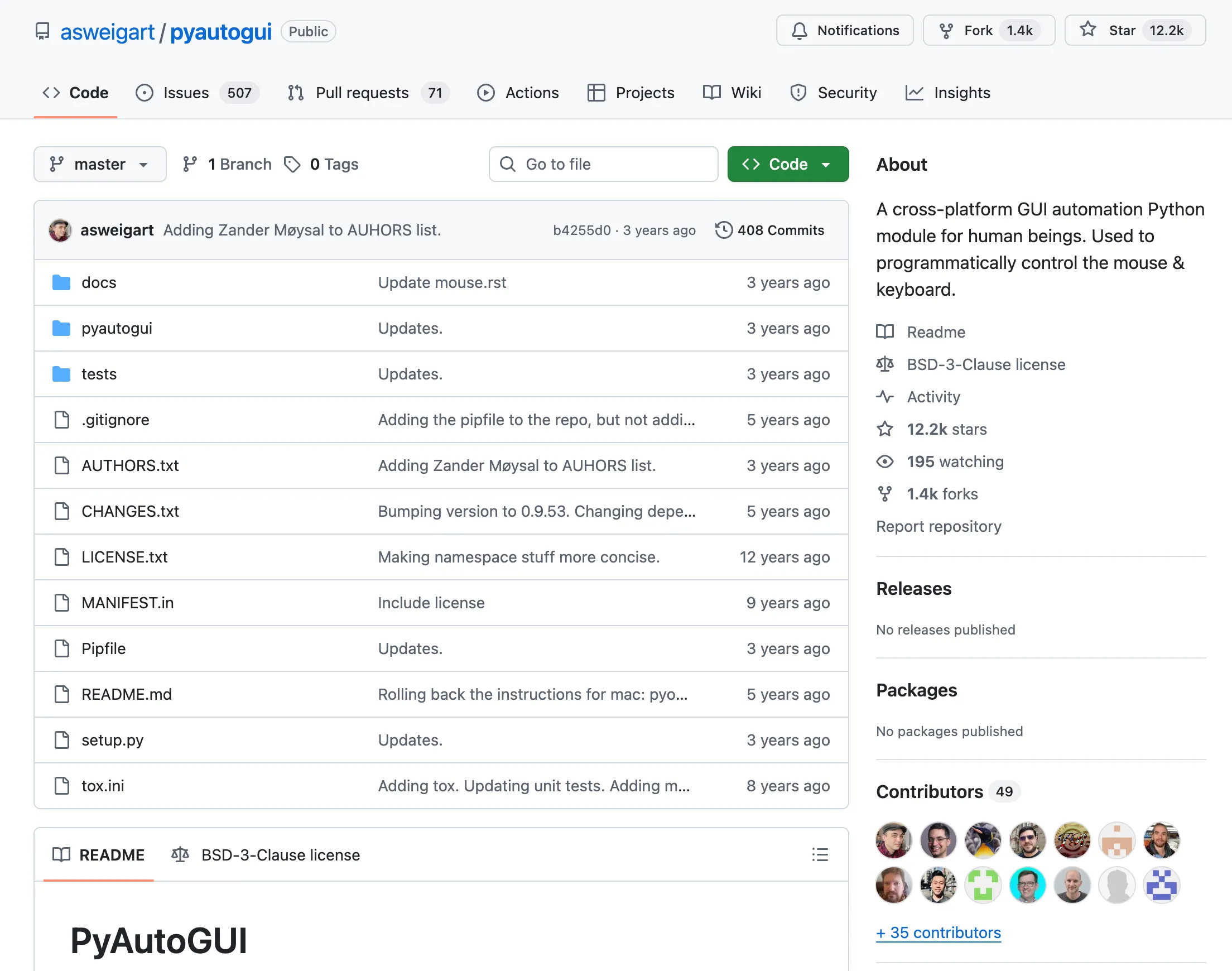
So, if you are going to use desktop screen capture for production-ready projects, check out our guide on Python MSS, it is still actively maintained.
Installation and Basic usage
Install the library using pip:
pip install pyautoguiOn Linux, you may also need:
pip install python3-xlibsudo apt-get install scrotimport pyautogui
# Capture entire screenscreenshot = pyautogui.screenshot()
# Save to filescreenshot.save('screenshot.png')That’s it. The simplest API of any screenshot library.
Region Capture
The region parameter uses the format (left, top, width, height):
import pyautogui
# Capture a 500x500 region starting at (100, 100)region_screenshot = pyautogui.screenshot(region=(100, 100, 500, 500))region_screenshot.save('region.png')Important: The order is (left, top, width, height), NOT (x, y, x2, y2).
# This captures from (100, 200) with size 300x400region = (100, 200, 300, 400)# left, top, width, height
screenshot = pyautogui.screenshot(region=region)Understanding the PIL Image Return
pyautogui returns a PIL Image object:
import pyautogui
screenshot = pyautogui.screenshot()
# It's a PIL Imageprint(type(screenshot)) # <class 'PIL.Image.Image'>
# Use PIL methodsprint(screenshot.size) # (1920, 1080)print(screenshot.mode) # RGB
# Save in different formatsscreenshot.save('screenshot.png')screenshot.save('screenshot.jpg', quality=85)
# Convert to other formatsscreenshot_gray = screenshot.convert('L') # GrayscaleConvert to NumPy Array
import pyautoguiimport numpy as np
screenshot = pyautogui.screenshot()
# Convert to numpy arrayimg_array = np.array(screenshot)
print(img_array.shape) # (1080, 1920, 3) for 1080p RGBlocateOnScreen: Find Images on Screen
One of pyautogui’s killer features—find where an image appears on screen:
import pyautogui
# Find image on screenlocation = pyautogui.locateOnScreen('button.png')
if location: print(f"Found at: {location}") # Box(left=100, top=200, width=50, height=30)
# Get center point center = pyautogui.center(location) print(f"Center: {center}")else: print("Image not found")With Confidence (Fuzzy Matching)
Requires OpenCV:
pip install opencv-pythonimport pyautogui
# Allow some variation in matchinglocation = pyautogui.locateOnScreen('button.png', confidence=0.9)Lower confidence = more lenient matching. Default is 1.0 (exact match).
Find All Occurrences
import pyautogui
# Find all matching imageslocations = list(pyautogui.locateAllOnScreen('icon.png'))
print(f"Found {len(locations)} matches")for loc in locations: print(f" {loc}")Handling ImageNotFoundException
import pyautogui
try: location = pyautogui.locateOnScreen('button.png')except pyautogui.ImageNotFoundException: print("Image not found on screen") location = None
# Or use the return valuelocation = pyautogui.locateOnScreen('button.png')if location is None: print("Image not found")Common causes:
- Image file doesn’t exist
- Screen content doesn’t match exactly
- Resolution or scaling differences
Click on Found Image
Combine screenshots with automation:
import pyautogui
# Find and click a buttonbutton = pyautogui.locateOnScreen('submit_button.png', confidence=0.9)
if button: # Click the center of the button pyautogui.click(pyautogui.center(button))else: print("Button not found")Multiple Screenshots
import pyautoguiimport time
# Capture screenshots every secondfor i in range(10): screenshot = pyautogui.screenshot() screenshot.save(f'screenshot_{i:03d}.png') time.sleep(1)Complete Automation Example
import pyautoguiimport time
def click_if_found(image_path, timeout=10): """Wait for image and click it.""" start = time.time()
while time.time() - start < timeout: location = pyautogui.locateOnScreen(image_path, confidence=0.9) if location: center = pyautogui.center(location) pyautogui.click(center) return True time.sleep(0.5)
return False
def automate_login(): """Example automation script.""" # Wait for login button if click_if_found('login_button.png'): print("Clicked login button")
# Wait for username field time.sleep(1) pyautogui.typewrite('myusername')
# Tab to password pyautogui.press('tab') pyautogui.typewrite('mypassword')
# Submit pyautogui.press('enter')
# Screenshot the result time.sleep(2) pyautogui.screenshot('result.png') else: print("Login button not found")
# automate_login()Grayscale for Faster Matching
import pyautogui
# Grayscale is faster for locateOnScreenlocation = pyautogui.locateOnScreen('button.png', grayscale=True)Screenshot with Pause
pyautogui has a built-in pause feature:
import pyautogui
# Add 0.5 second pause between all pyautogui callspyautogui.PAUSE = 0.5
screenshot = pyautogui.screenshot() # 0.5s pause before thisscreenshot.save('screenshot.png')Summary
PyAutoGUI is a simple library for taking screenshots and automating tasks. It is easy to use, but be careful since the library hasn’t been updated for a few years.
Features of PyAutoGUI:
- Simple API:
pyautogui.screenshot()returns PIL Image - Region format:
(left, top, width, height) - locateOnScreen: Find images on screen
- Slow but simple: 1-5 FPS, but easy to use
- Best for automation: Combine with click/type functions
For better performance, use mss or dxcam.
For website screenshots, check out our guide on website screenshots with Python or just use Playwright for Python instead.
Frequently Asked Questions
If you read the article, but still have questions. Please, check the most frequently asked. And if you still have questions, feel free reach out at support@screenshotone.com.
What is the region parameter order in PyAutoGUI screenshot?
The region parameter is (left, top, width, height). Left is the X coordinate, top is the Y coordinate, then width and height of the capture area.
Does PyAutoGUI screenshot return a PIL Image?
Yes, pyautogui.screenshot() returns a PIL Image object. You can save it directly with .save() or process it with PIL/Pillow methods.
How to fix ImageNotFoundException in PyAutoGUI?
This error occurs when locateOnScreen() can't find the image. Ensure the image file exists, the screen content matches exactly, and try lowering the confidence parameter.